

Introduction
Few things are more frustrating than being blocked from logging in, submitting a form, or finishing a checkout because a reCAPTCHA box won’t load, keeps failing, or throws a vague “verification failed” message. Since reCAPTCHA runs a multi-step process behind the scenes — loading scripts, analyzing behavior, generating a token, and validating it on the backend — a break at any point in that chain can cause it to fail. This guide walks through the most common causes of reCAPTCHA problems and clear steps to fix them, whether you’re a regular user trying to get past a stuck checkbox or a site owner troubleshooting it for visitors.
Why reCAPTCHA Stops Working
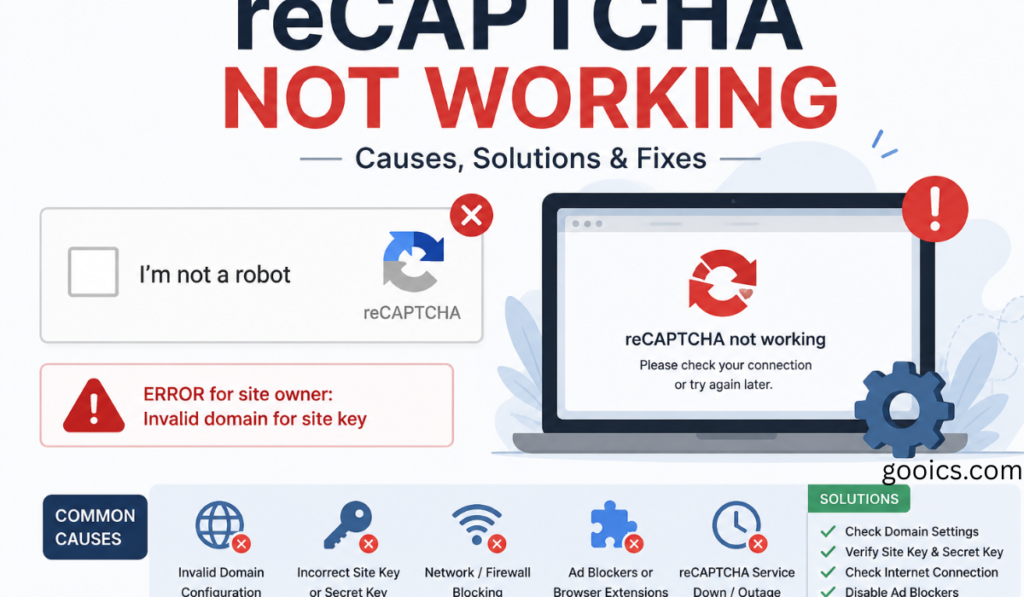
reCAPTCHA verification typically fails for one of a few reasons:
- Browser-side issues – Outdated browsers, corrupted cache or cookies, or disabled JavaScript can all interrupt the verification process.
- Extensions and privacy tools – Ad blockers, script blockers, and privacy-focused browser extensions sometimes block the Google scripts reCAPTCHA depends on.
- Network interference – VPNs, proxies, and shared IP addresses can trigger Google’s risk analysis system to flag a request as suspicious, since reCAPTCHA partly relies on IP reputation.
- Site configuration problems – On the website owner’s side, mismatched site/secret keys, unregistered domains, plugin conflicts, or outdated integration code can cause reCAPTCHA to fail for every visitor, not just one person.
- Device or malware issues – In rarer cases, malware or a corrupted browser installation can interfere with script loading and verification.
Fixes for Everyday Users
If reCAPTCHA is failing for you specifically (not for everyone visiting the site), try these steps in order:
- Update your browser. Older browser versions often lack support for the latest reCAPTCHA scripts. Check for updates through your browser’s settings menu, then restart it.
- Clear your cache and cookies. Corrupted or outdated cached data is one of the most common causes of reCAPTCHA failing to load or verify correctly.
- Disable browser extensions temporarily. Ad blockers and privacy extensions can silently block the scripts reCAPTCHA needs to run — disable them one at a time to identify the culprit.
- Make sure JavaScript is enabled. reCAPTCHA depends entirely on JavaScript running properly in your browser.
- Turn off your VPN or proxy, if you’re using one. Shared or flagged IP addresses are a common trigger for repeated verification failures.
- Try a different browser or device. This helps determine whether the problem is tied to your specific browser setup or something broader, like your network or the site itself.
- Restart your device. A simple restart can clear up temporary conflicts that aren’t obvious from the browser alone.
- Check for malware. If none of the above works, running a scan with a reputable antivirus tool can rule out malware interference.
Fixes for Website Owners
If reCAPTCHA is failing for all of your site’s visitors, the issue is usually on the configuration side rather than the user’s device:
- Double-check your Site and Secret keys. Mismatched keys between your reCAPTCHA settings and your website configuration are one of the most common causes of a site-wide failure.
- Verify domain registration. Make sure the domain reCAPTCHA is running on is correctly registered in the Google reCAPTCHA admin console.
- Check for plugin or script conflicts. On platforms like WordPress, conflicting security or form plugins can interfere with reCAPTCHA loading correctly.
- Update outdated integration code. If your site hasn’t updated its reCAPTCHA integration in a while, older scripts may no longer be fully compatible.
- Log specific error responses. Rather than showing visitors a generic “verification failed” message, capturing the actual error code returned by Google makes it much easier to pinpoint the real cause.
Understanding reCAPTCHA v2 vs. v3
Part of diagnosing a reCAPTCHA not working issue is knowing which version you’re dealing with. reCAPTCHA v2 is the familiar “I’m not a robot” checkbox, sometimes followed by an image-selection challenge, while reCAPTCHA v3 runs invisibly in the background and assigns a risk score without requiring any visible interaction. If you’re not seeing a checkbox at all but a form or login still isn’t going through, it may be v3 silently failing rather than a visible widget breaking.
A Note on CAPTCHA-Solving Services
Some articles on this topic point toward third-party “CAPTCHA-solving” tools marketed at automating verification. These are generally built for bypassing bot-detection systems at scale and aren’t a legitimate fix for someone trying to log in or submit a normal form — using them can violate a site’s terms of service and isn’t something this guide recommends. If you’re a legitimate user or site owner running into genuine reCAPTCHA problems, the browser, network, and configuration fixes above address the vast majority of real cases.
Conclusion
Most reCAPTCHA failures come down to something fixable: an outdated browser, a blocking extension, cached data, a VPN, or — on the site owner’s side — a configuration mismatch. Working through the relevant checklist above resolves the issue in the large majority of cases, and if it doesn’t, isolating whether the problem follows your device, your network, or the site itself is the fastest way to figure out what’s actually going wrong.
FAQs: reCAPTCHA Not Working
1. Why does reCAPTCHA keep failing or not loading? Common causes include an outdated browser, corrupted cache or cookies, disabled JavaScript, blocking browser extensions, VPN or proxy use, or a site-side configuration issue.
2. How do I fix reCAPTCHA not loading in my browser? Try updating your browser, clearing your cache and cookies, disabling extensions like ad blockers, and confirming JavaScript is enabled, then restart the browser.
3. Can a VPN cause reCAPTCHA to fail? Yes, VPNs and proxies route traffic through shared IP addresses that can be flagged by Google’s risk analysis system, triggering repeated verification failures.
4. Why does reCAPTCHA fail for every visitor on a website, not just me? If the issue affects everyone, it’s usually a site-side problem, such as mismatched Site/Secret keys, an unregistered domain, plugin conflicts, or outdated integration code.
5. What’s the difference between reCAPTCHA v2 and v3? reCAPTCHA v2 shows a visible “I’m not a robot” checkbox (sometimes with an image challenge), while v3 runs invisibly in the background and assigns a risk score without any visible interaction.
6. Why does my reCAPTCHA checkbox not appear at all? If you’re not seeing a checkbox, the site may be using invisible reCAPTCHA v3, which can fail silently in the background without showing an obvious widget.
7. Do ad blockers affect reCAPTCHA? Yes, ad blockers and privacy-focused browser extensions can block the Google scripts reCAPTCHA relies on, so disabling them temporarily can help identify the cause.
8. Should I use a “CAPTCHA-solving” service to get past a stuck reCAPTCHA? No — these services are generally built for bypassing bot detection at scale and can violate a site’s terms of service; they aren’t a legitimate fix for a real user trying to log in or submit a form.
9. How can I tell if the problem is my device or the website itself? Try completing the action from a different browser, device, or network — if it works elsewhere, the issue is likely tied to your original browser or network setup.
10. What should website owners do to prevent reCAPTCHA errors for visitors? Regularly verify Site/Secret keys, confirm domain registration in the Google reCAPTCHA console, keep integration code updated, and log specific error responses instead of showing a generic error message.